Google Managed SSL Certificates on Google Cloud Platform (GCP) is a service that secures your website or app with SSL or TLS encryption. It offers automatic certificate management to ensure secure and reliable data transmission for your website worldwide.
These certificates integrate with numerous GCP services, undergo automatic renewal to prevent outages, and prove highly beneficial. Configuring SSL/TLS encryption is straightforward and offers easy accessibility, even for users without a background in security.
Basically, Googlemanaged SSL certificates on GCP to simplify and improve website security while simplifying the certificate management process to ensure a good and reliable experience.
- You should
be owningown your domain in order to point the load balancer to your hosting name. - Reserve an External IP address in VPC
- Go to VPC Services and click on “IP Address”.
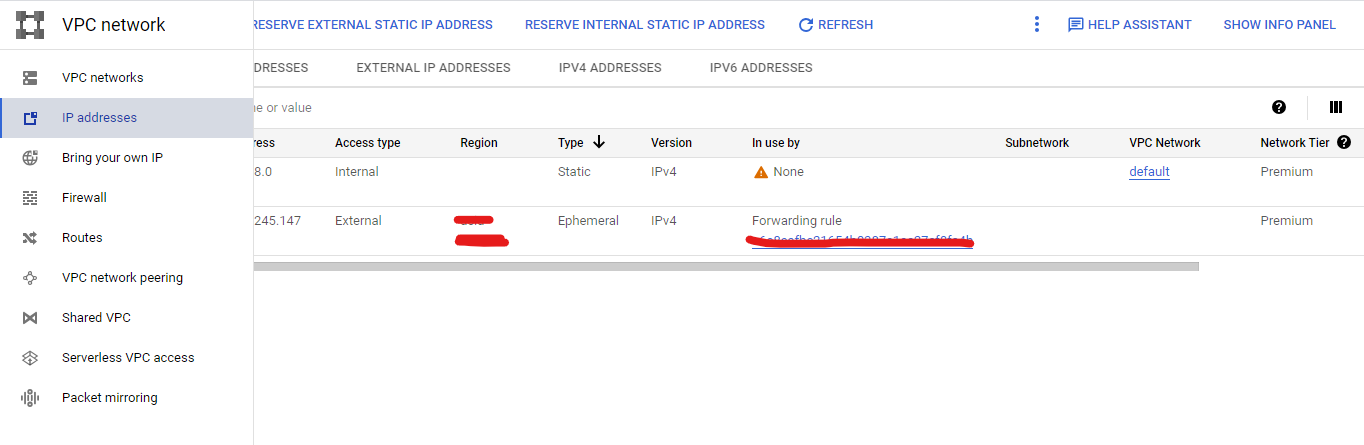
- Now click on Reserve External IP address

- Type a name for this IP and provide a little description.
- Select Global in TYPE secation and click on reserve.
Now, assign this IP to your subdomain by creating an A record in your DNS zone. Use your desired domain name and point the Reserved External IP to this domain.
- Go to the GKE cluster and connect through the cloud shell by typing the gcloud cli command for authenticating into your GKE cluster.
gcloud container clusters get-credentials <your-cluster-name> –region <your-cluster-region> –project <your-project-name>
- Now create a managed certificate yaml manifest file in order to create a SSL certificate using any text editor.
apiVersion: networking.gke.io/v1
kind: ManagedCertificate
metadata:
name: managed-cert
spec:
domains:
– <your-hosting-domain>
Save this file as managed-cert.yaml
- Now execute this yaml file by using “kubectl” command:
Kubectl apply -f managed-cert.yaml
Now wait for some time to get this certificate provisioned and the status to turn to Active.
- To check whether the certificate is active or not, type the following command:
kubectl get managedcertificate <your-cert-name> -n <your-namespace>

- Now create an ingress file and name it “managed-cert-ingress.yaml” and its content and structure should be like this:
apiVersion: networking.k8s.io/v1
kind: Ingress
metadata:
name: joyscore-ingress
namespace: joyscore
annotations:
networking.gke.io/managed-certificates: “<your-cert-name>”
kubernetes.io/ingress.global-static-ip-name: “<your-reserved-static-external-ip-name>”
spec:
rules:
– host: stgapi.joyscore.dev
http:
paths:
– path: /
pathType: Prefix
backend:
service:
name: exp-gateway
port:
number: 8080
- Now execute it using “kubectl” command:
Kubectl apply -f managed-cert-ingress.yaml
- Now check the description of the services through the following command:
- For check the managed certificate
kubectl describe managedcertificate -n <your-namespace>
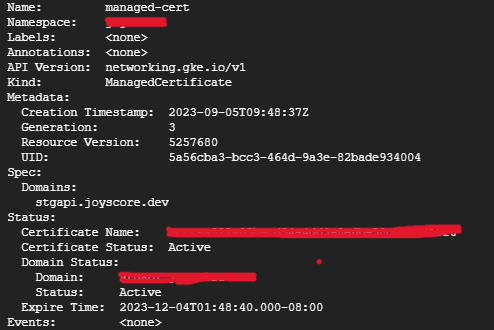
- For checking the ingress controller service
kubectl describe ingress <ingress-name> -n joyscore
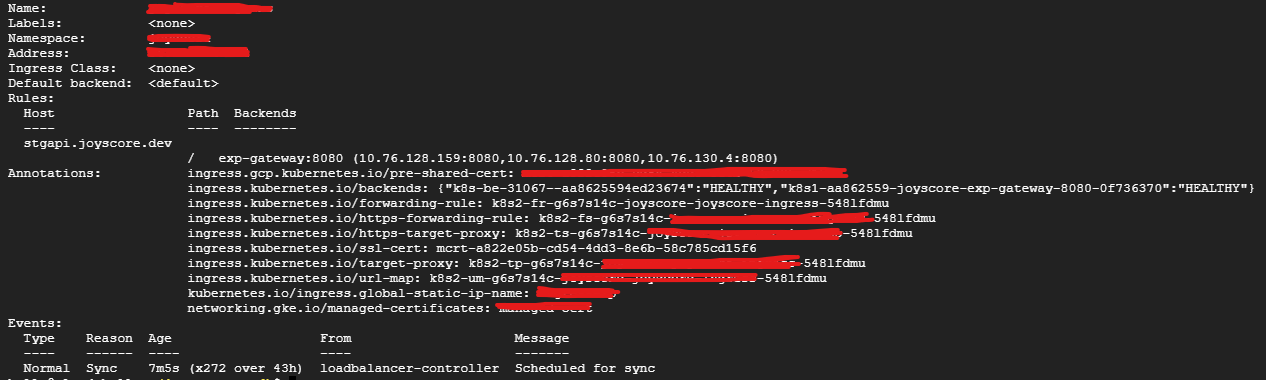
- For checking the ingress
kubectl get ingress -n <your-namespace>

Now if you go to the browser and hit the URL that you have hosted to point this ingress, it will display the page with valid https ssl certificate.
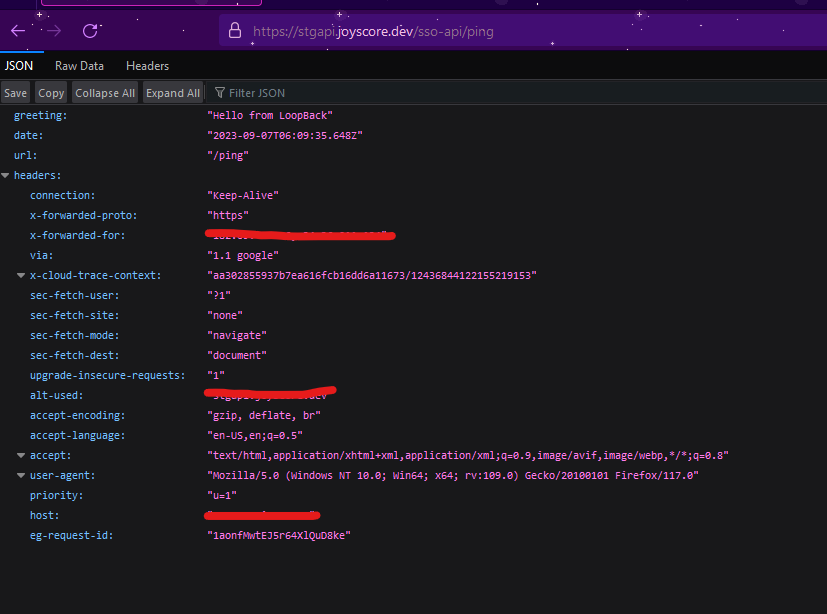
So, in this blog, we have learned how to use Google-Managed SSL Certificate for the GKE Ingress Controller.